
Building Quotes
Method 1 - ‘On the fly’
So you or your staff might be on a job.
They'd notice something's wrong. They want to just flick a quote to the customer straight away.
So you can do that.
In that instance, you'd be on a job already.
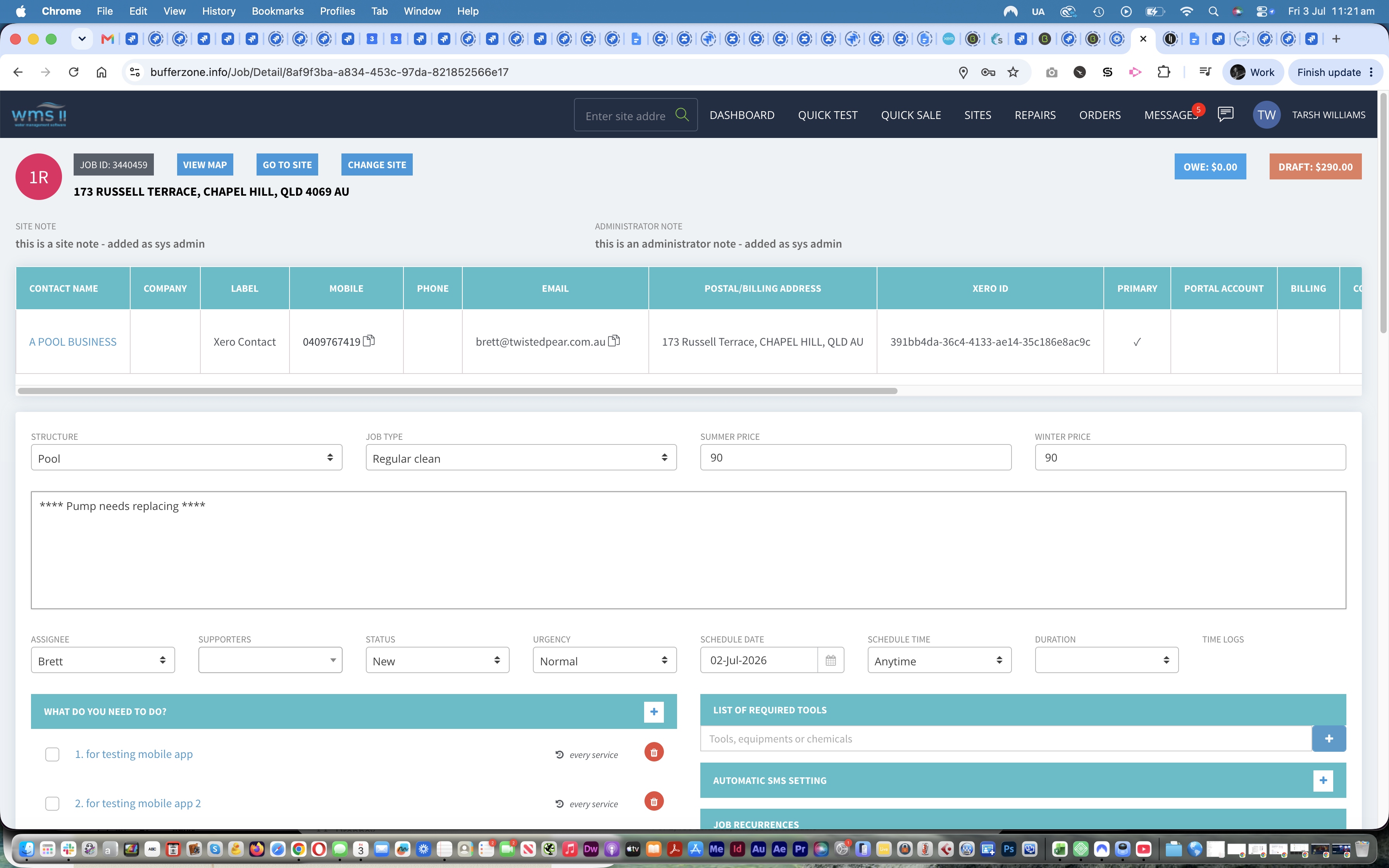
So go into an existing job into the Job Detail page.
You can access this tool from your phone, on the website or on your computer. Obviously on
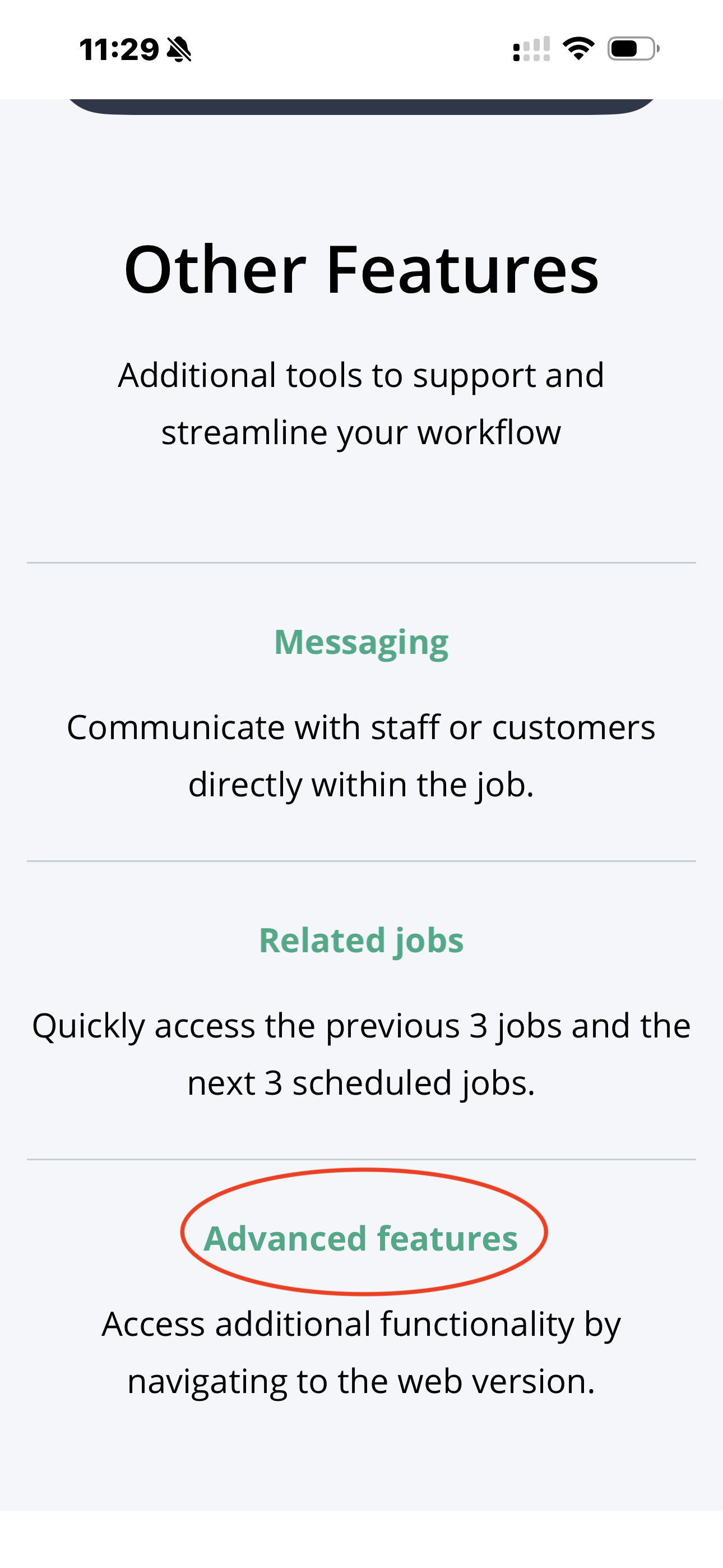
the app, you can also access it but you need to use the advanced features button on the app.
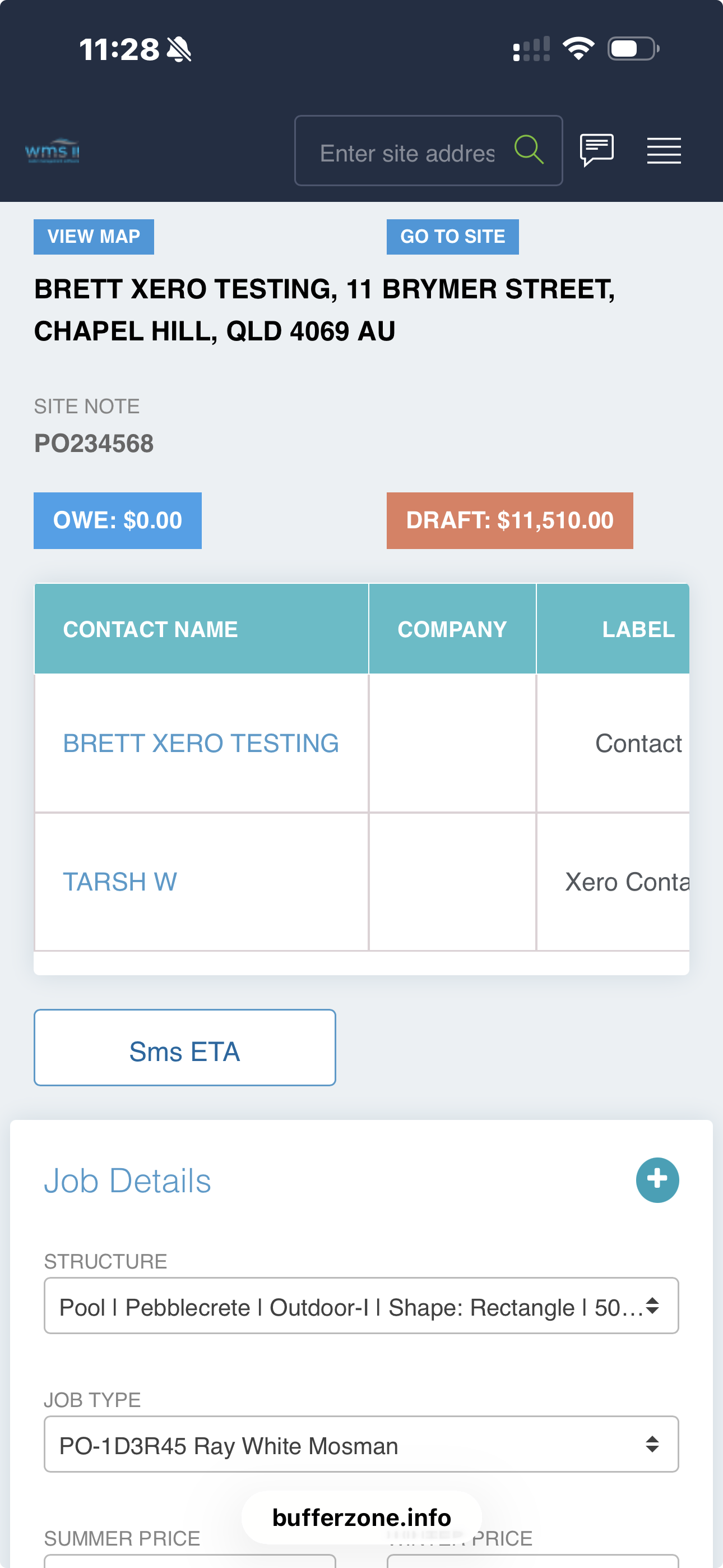
Web app on phone:
Mobile app - Advanced Features (scroll down the page inside a job)
You need to be online for this to work.
Down here, you'll find a Request Quote button (also available on your phone)
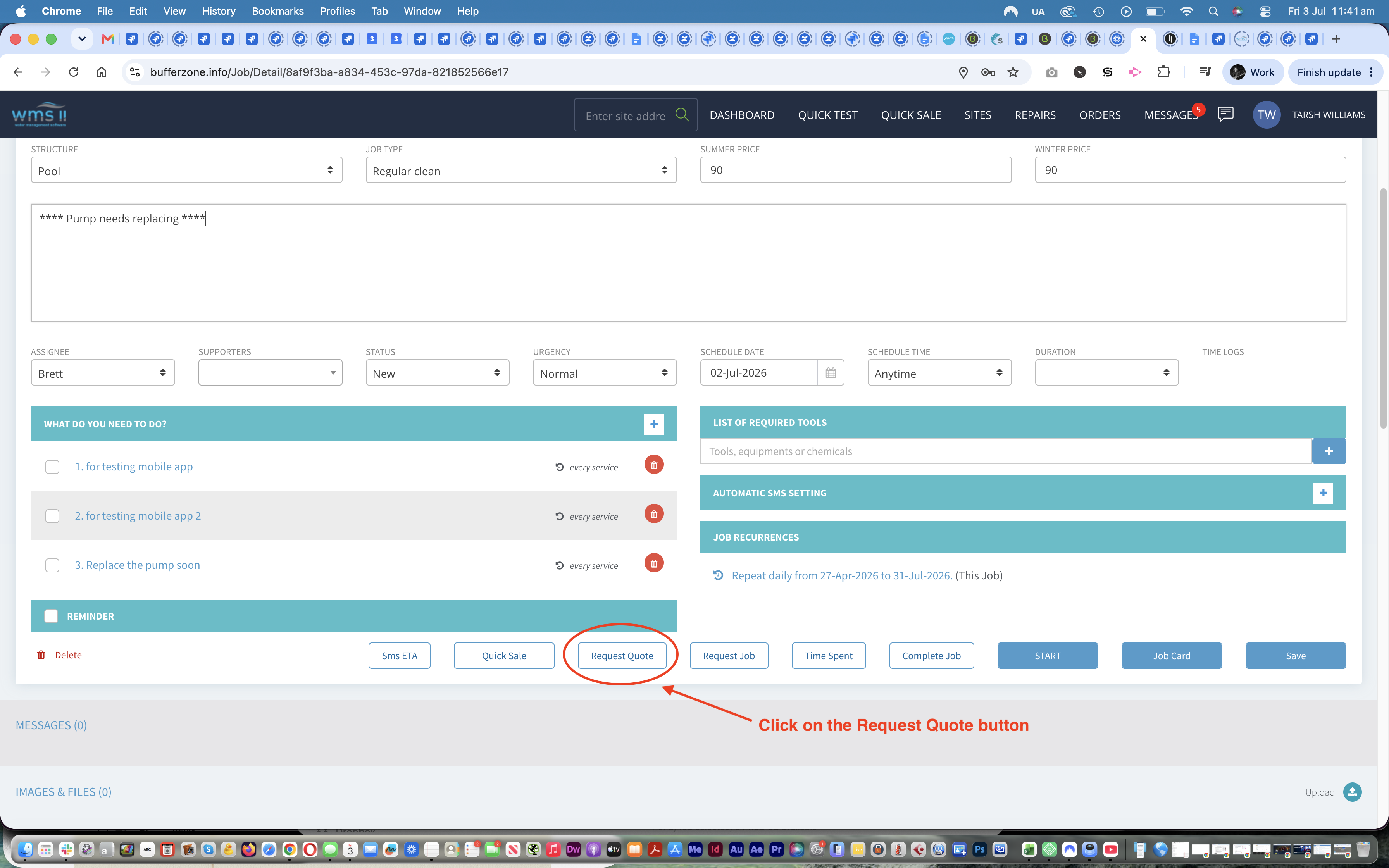
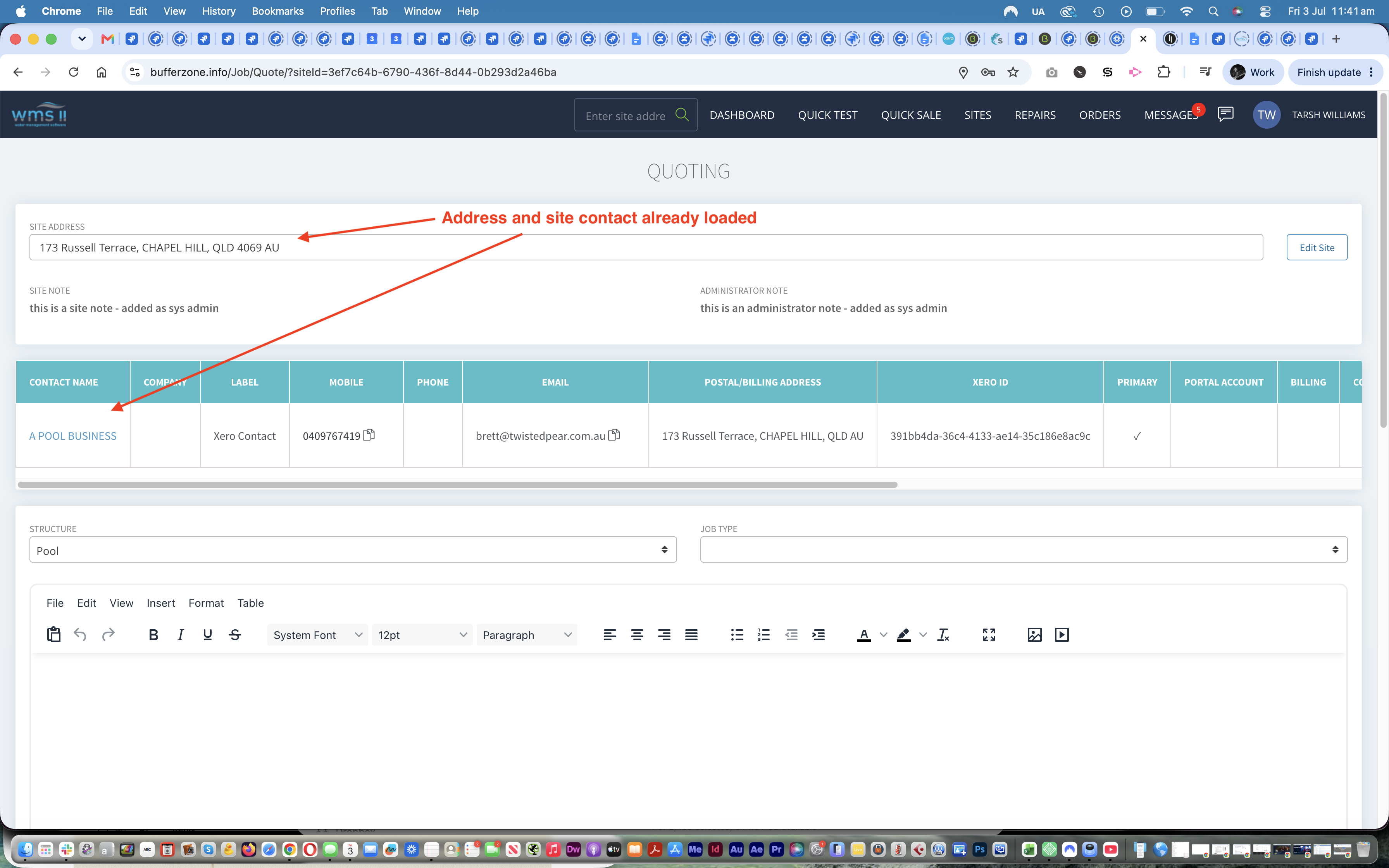
Clicking on that will take you to the Quoting page with the address and Contact already populated.
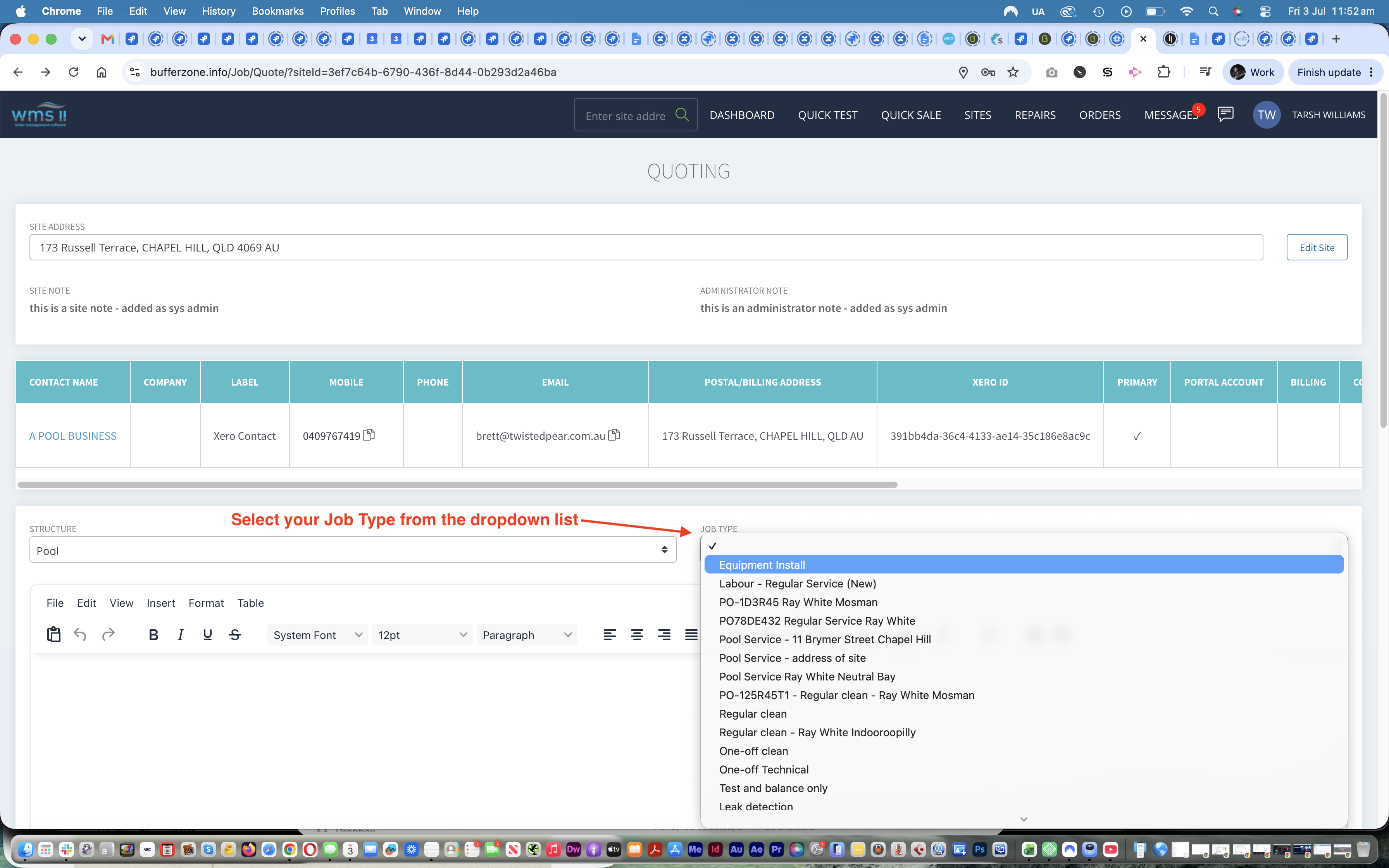
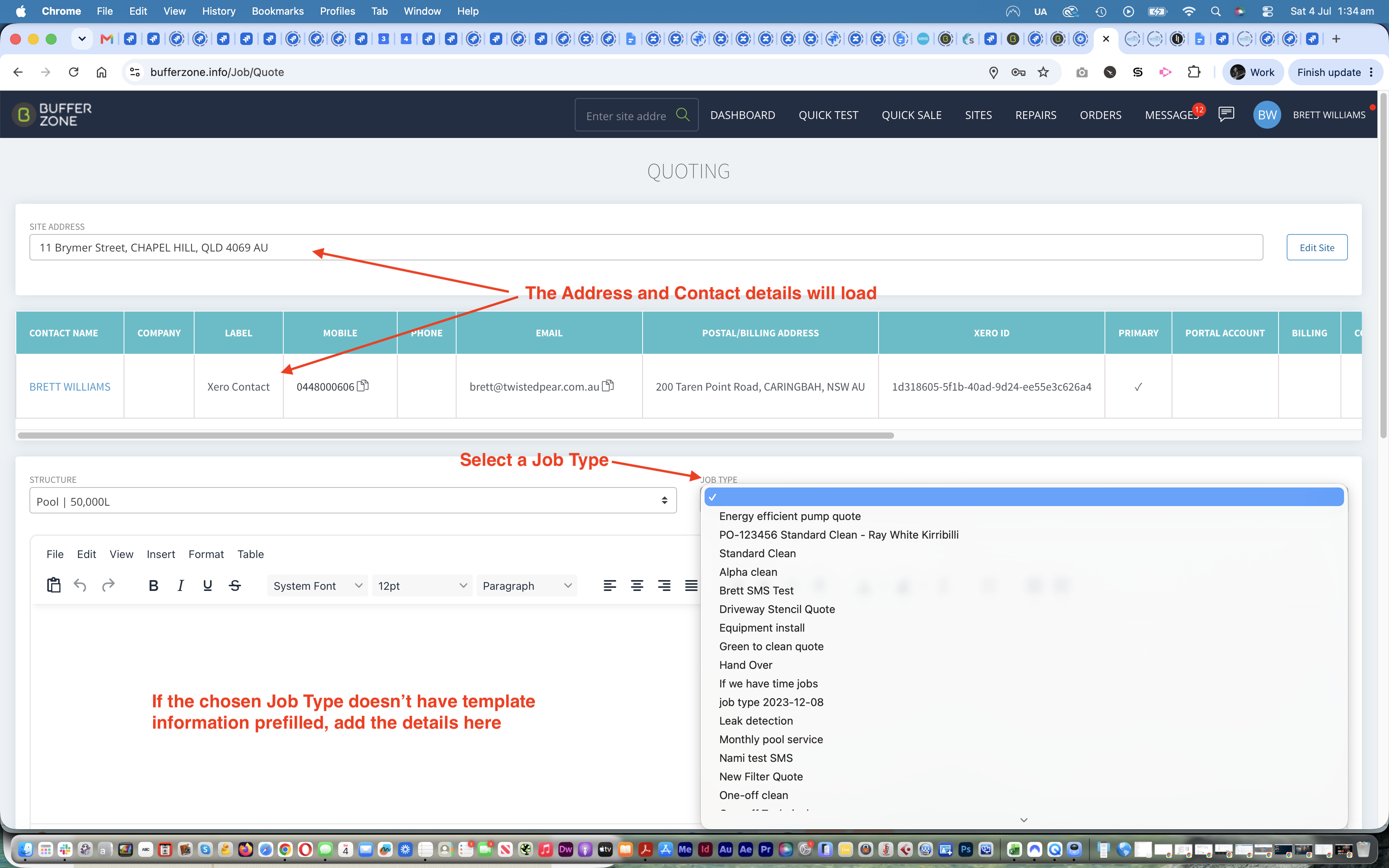
Then choose the Job Type from the dropdown list (these job types can be set up on the Job Type page
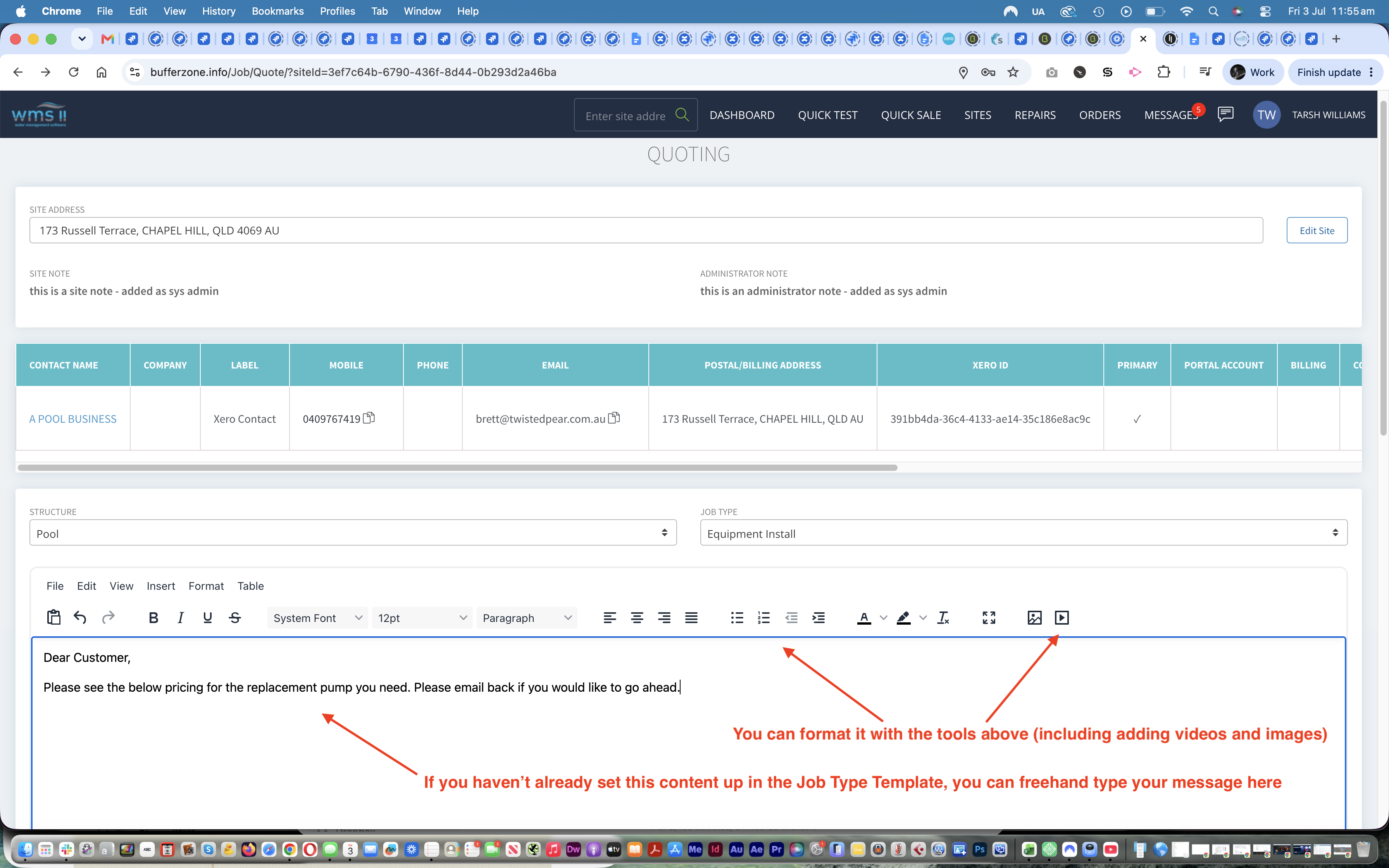
You can then add your message here. If you haven’t already set this content up in the Job Type Template, you can freehand type your message. You can use the formatting tools to add headings, paragraphs, images and videos if you want to.
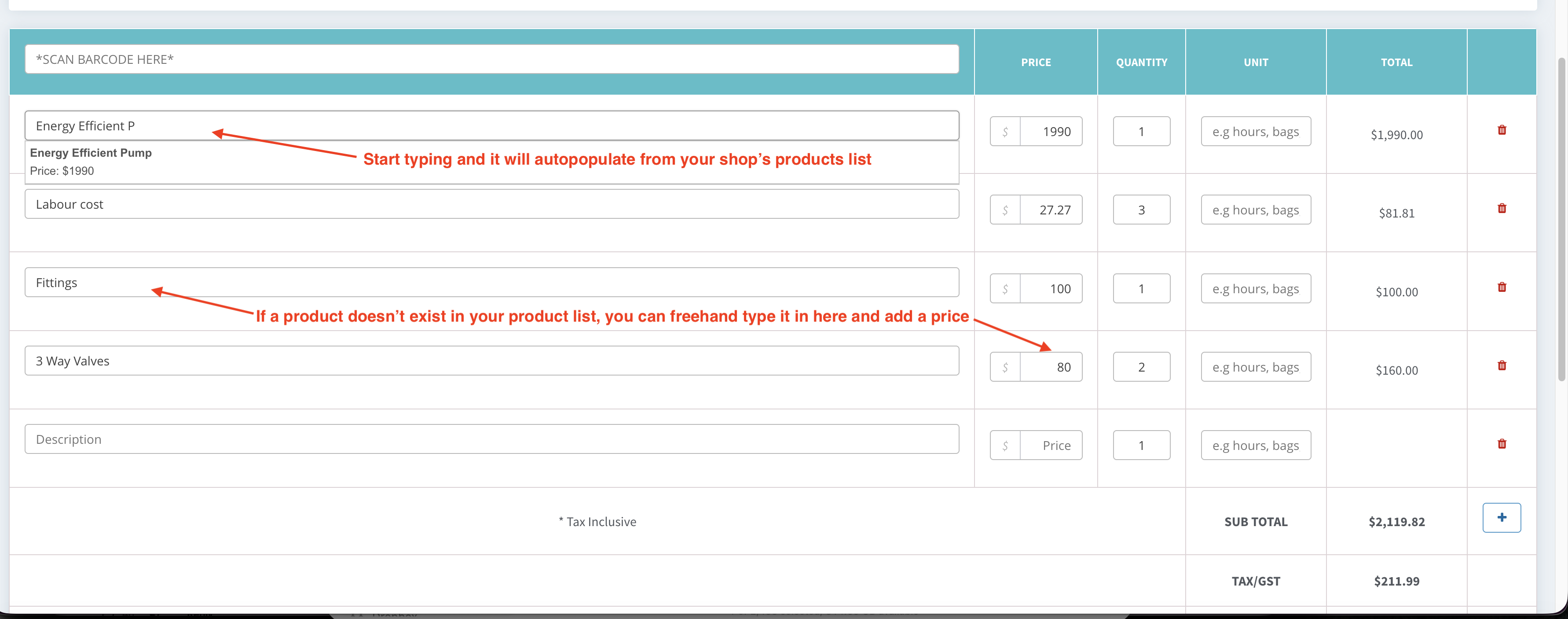
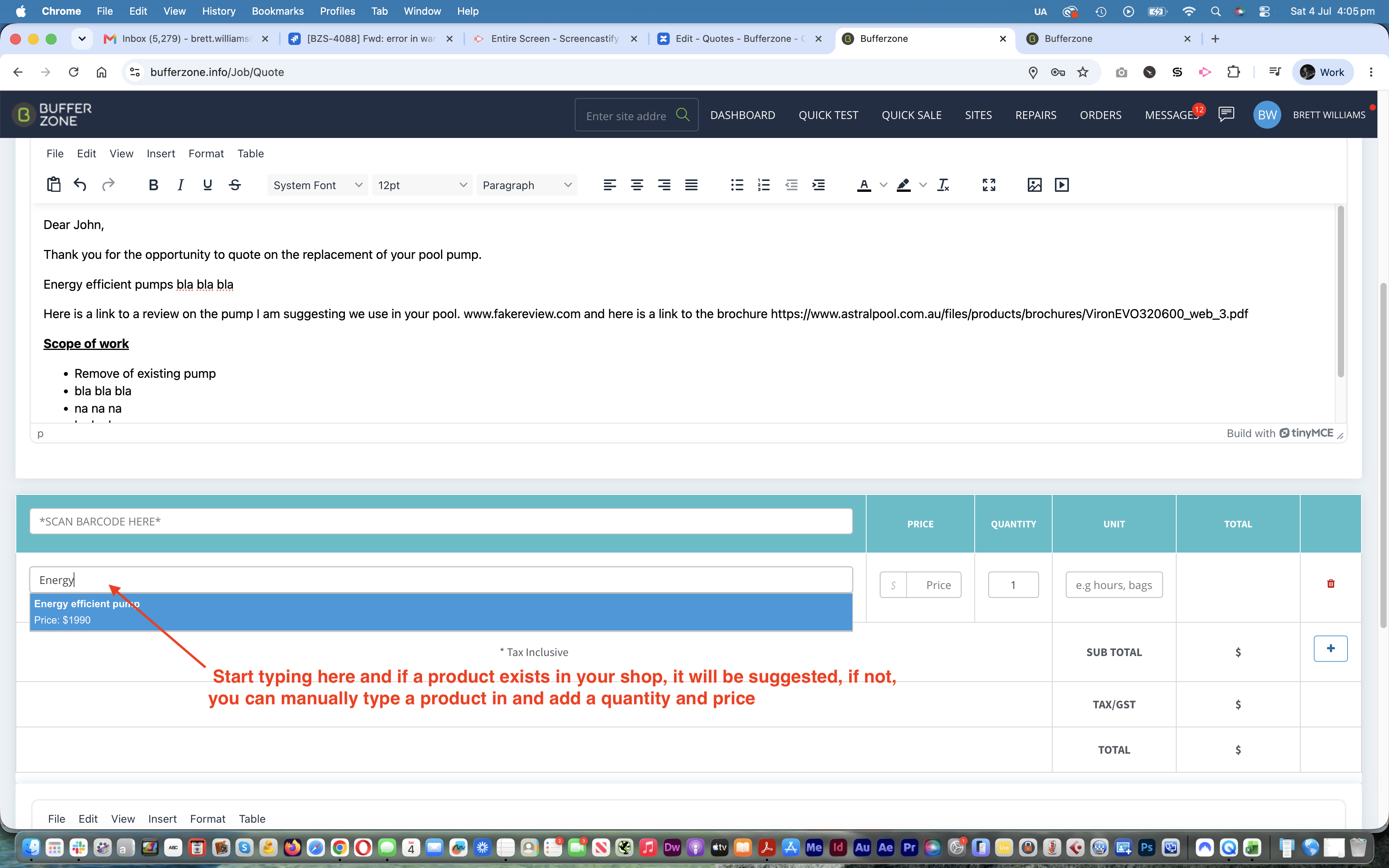
Below this, you start putting in the products that you would want to use. As you start typing, if the product exists in your Product list, it will load it in the dropdown for you to select. If the product doesn’t exist in your product list, you can manually type it in and add a price and number of units.
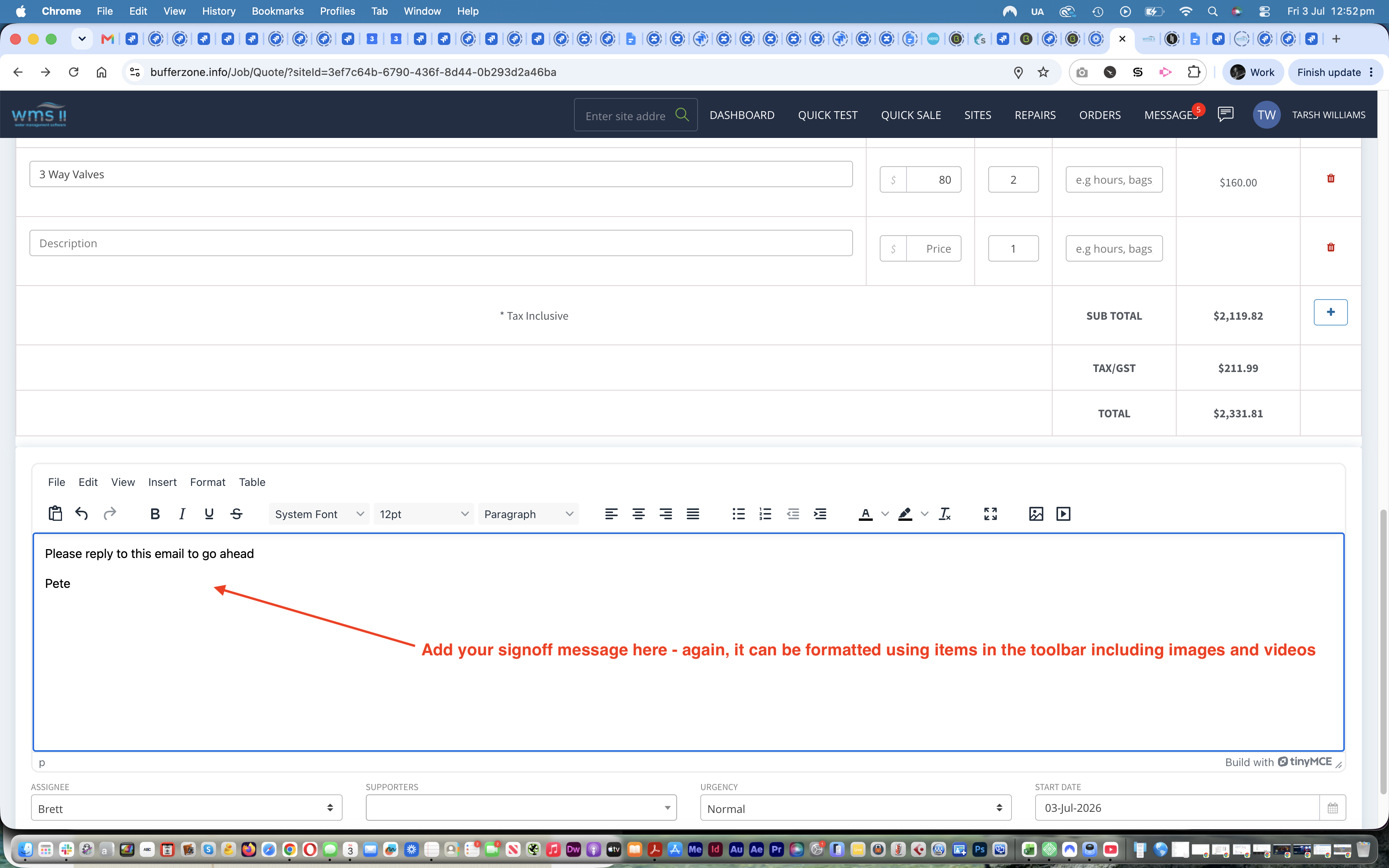
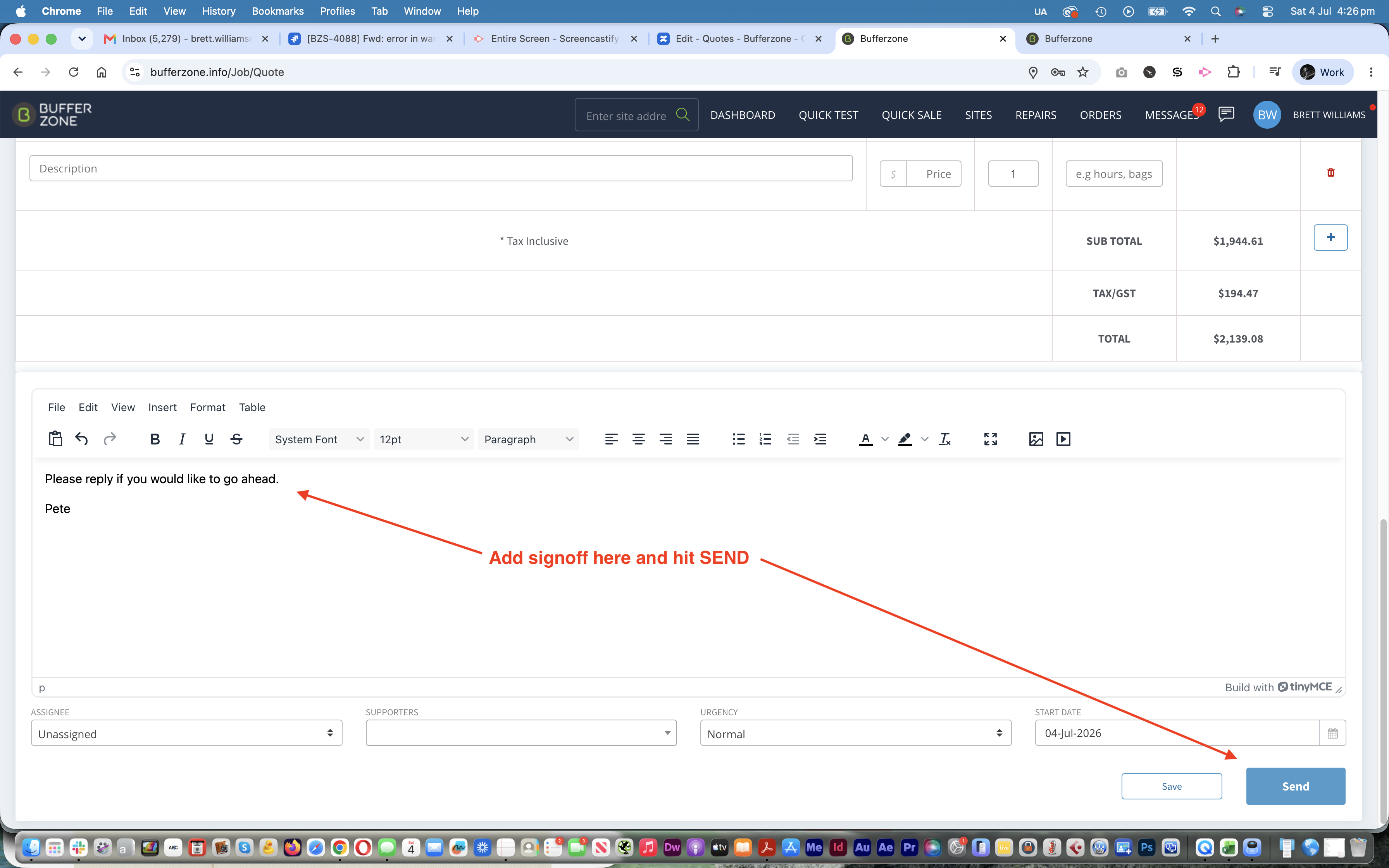
Then you can sign off the email here (formatting options are available)
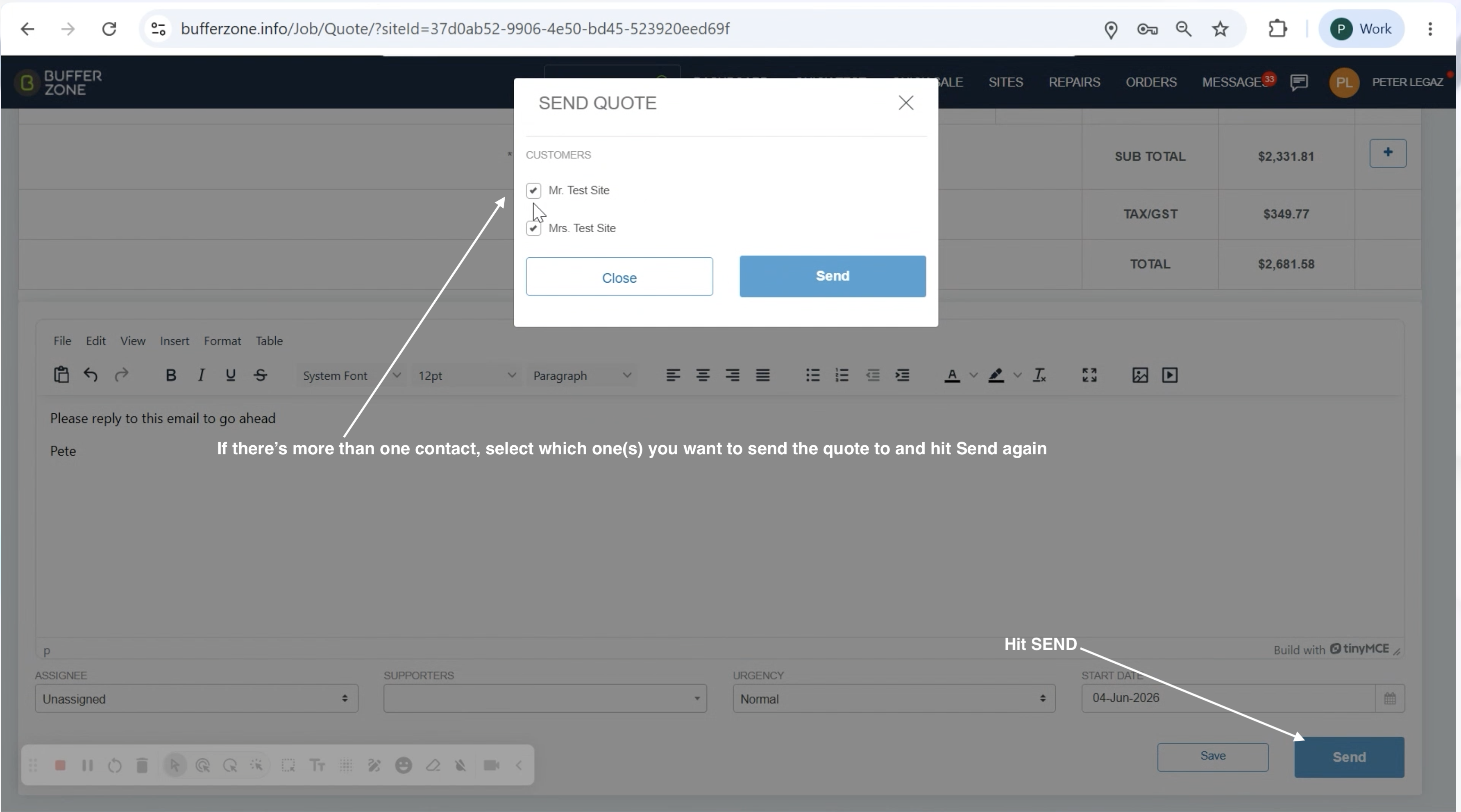
Then hit SEND.
If you have more than one contact on the site, select one or more of them to send the Quote to and hit SEND again
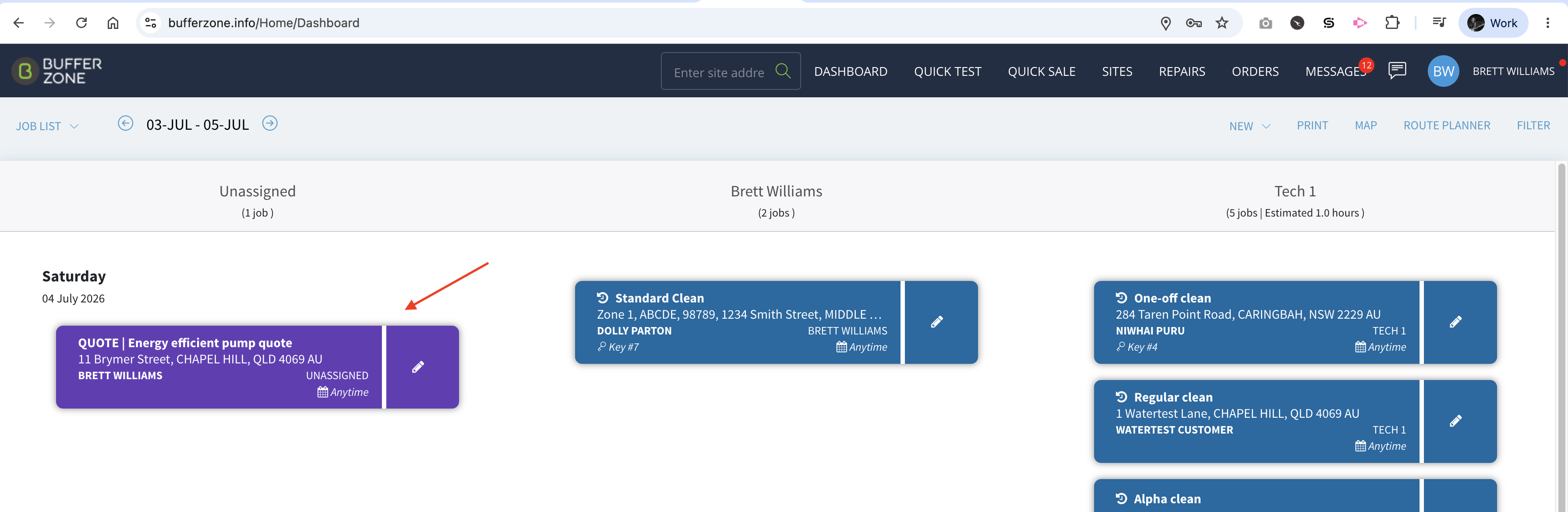
On the Dashboard, the Quote will show as a purple coloured tile and the customer will receive the quote via email.
Method 2 - Build a Quote Template on the Job Types page
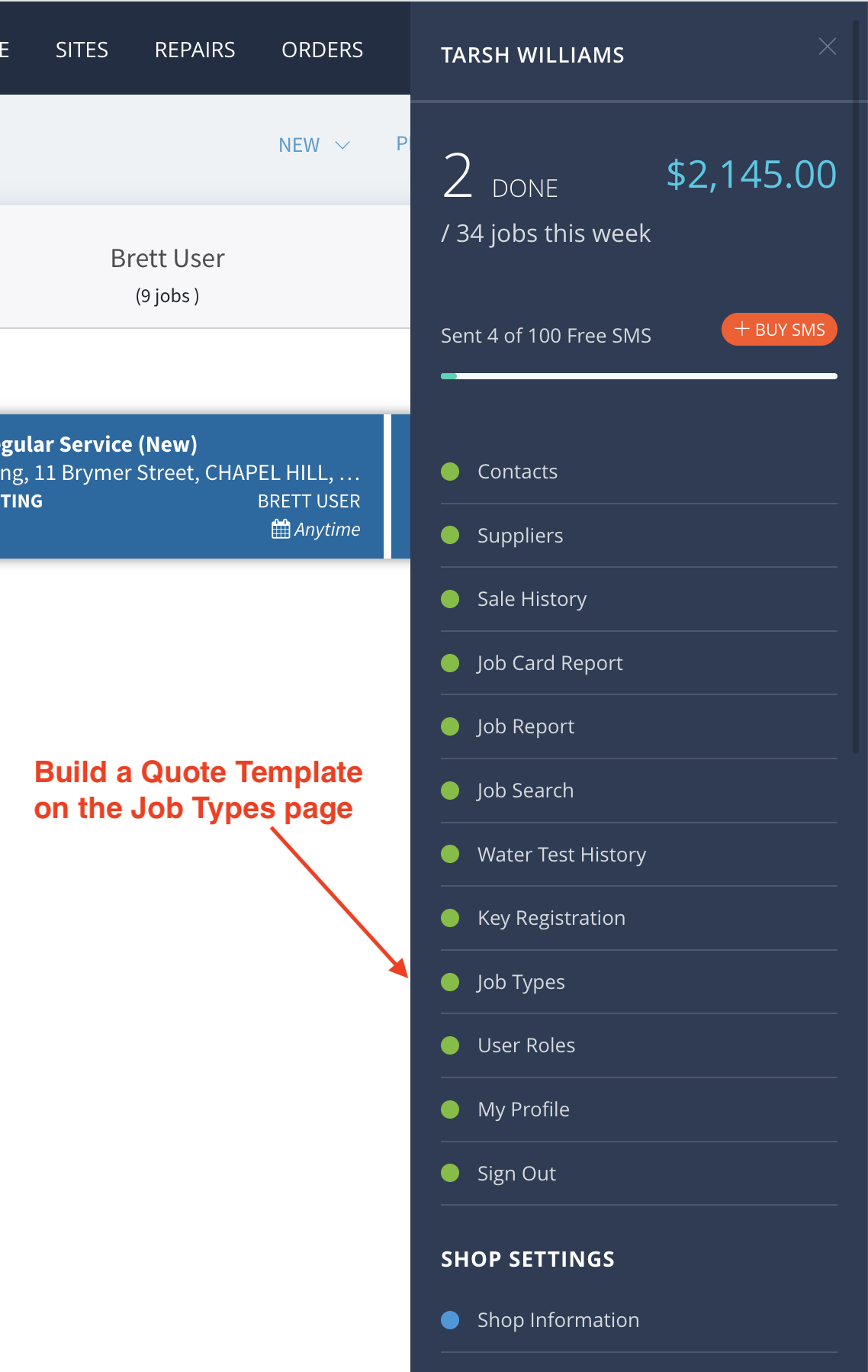
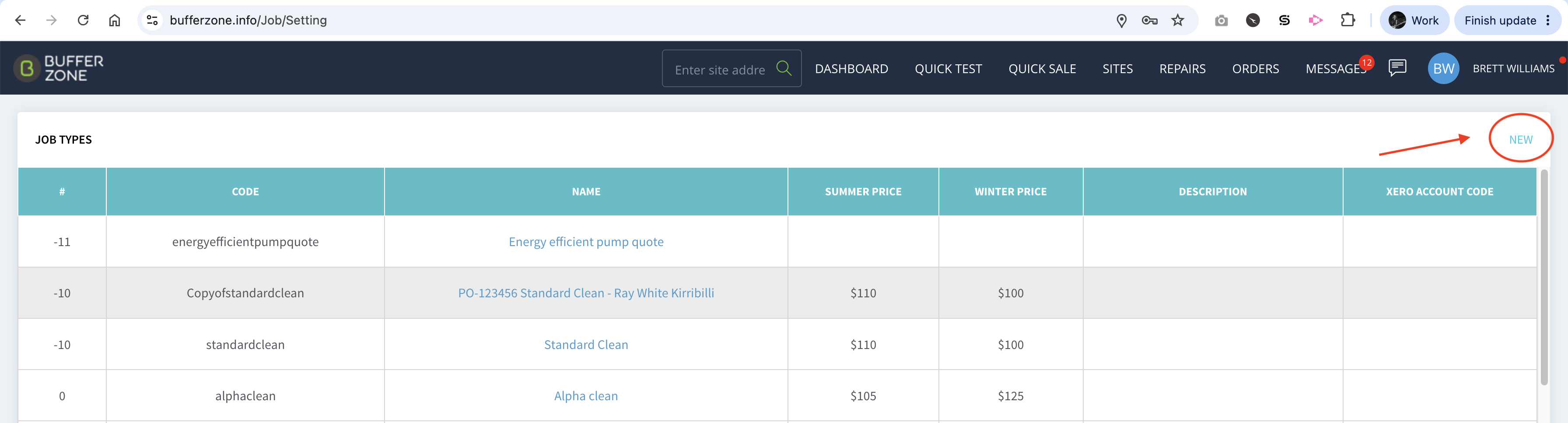
Go to the Job Types page (the link is in the main dropdown menu accessed by clicking on your name at the top right corner of the site)
To create a new template, click on the NEW link at the top right.
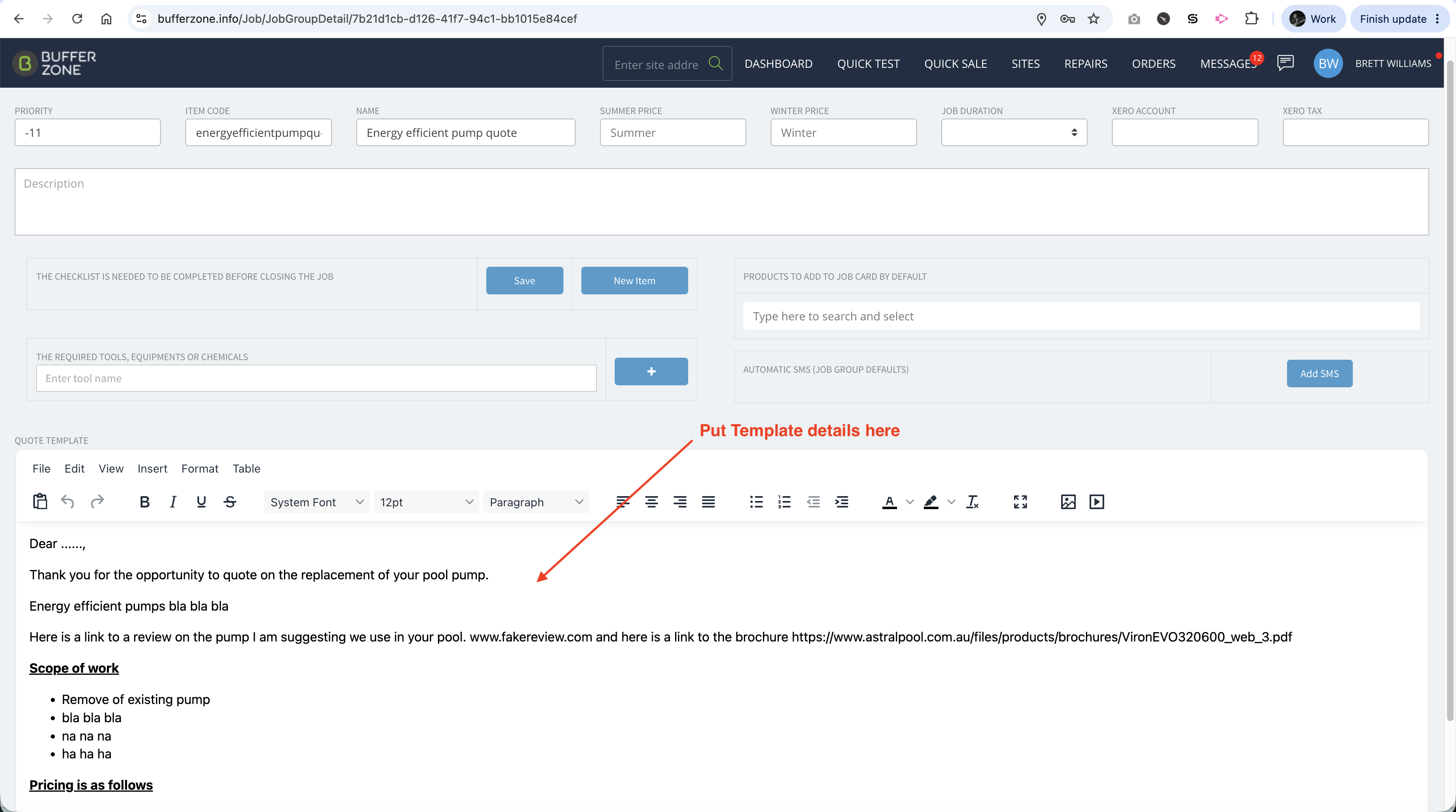
Enter the Template details here: in the example, I’ve left a space for the customer’s name. Add details, a link to a review and/or brochure, images, videos, scope of work, pricing etc This can be general and editable later or can be specific for a particular, regular quoting item. SAVE.
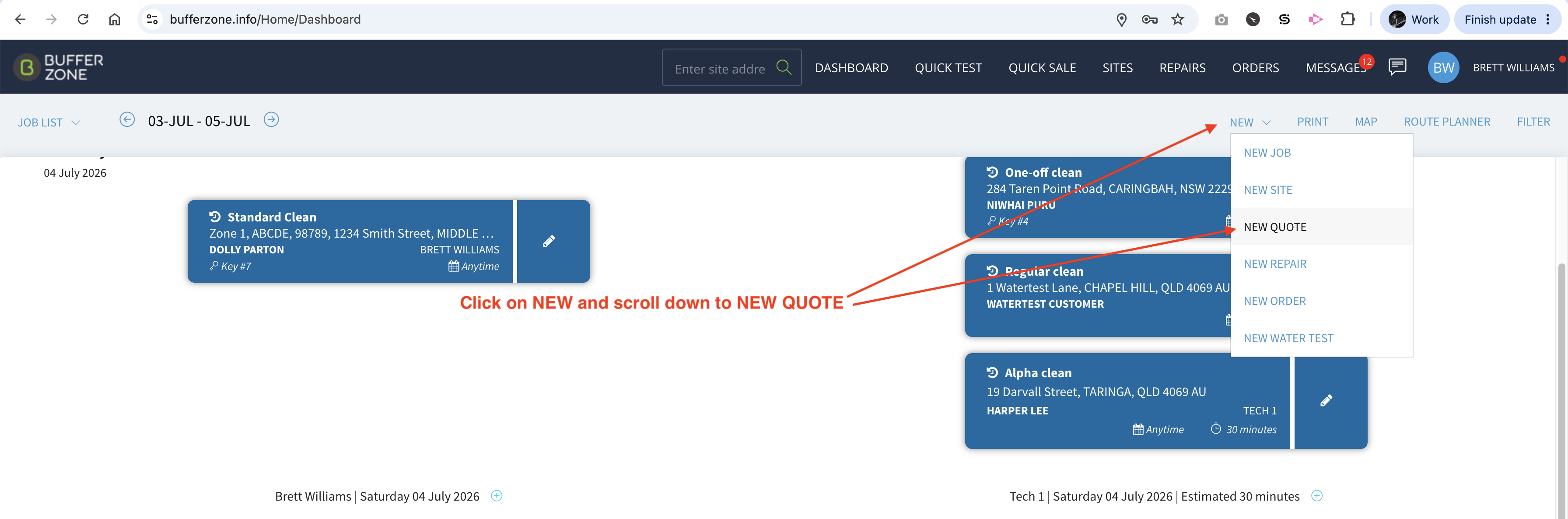
A Quote can be created on the fly from the Dashboard by clicking on NEW and scrolling down to NEW QUOTE.
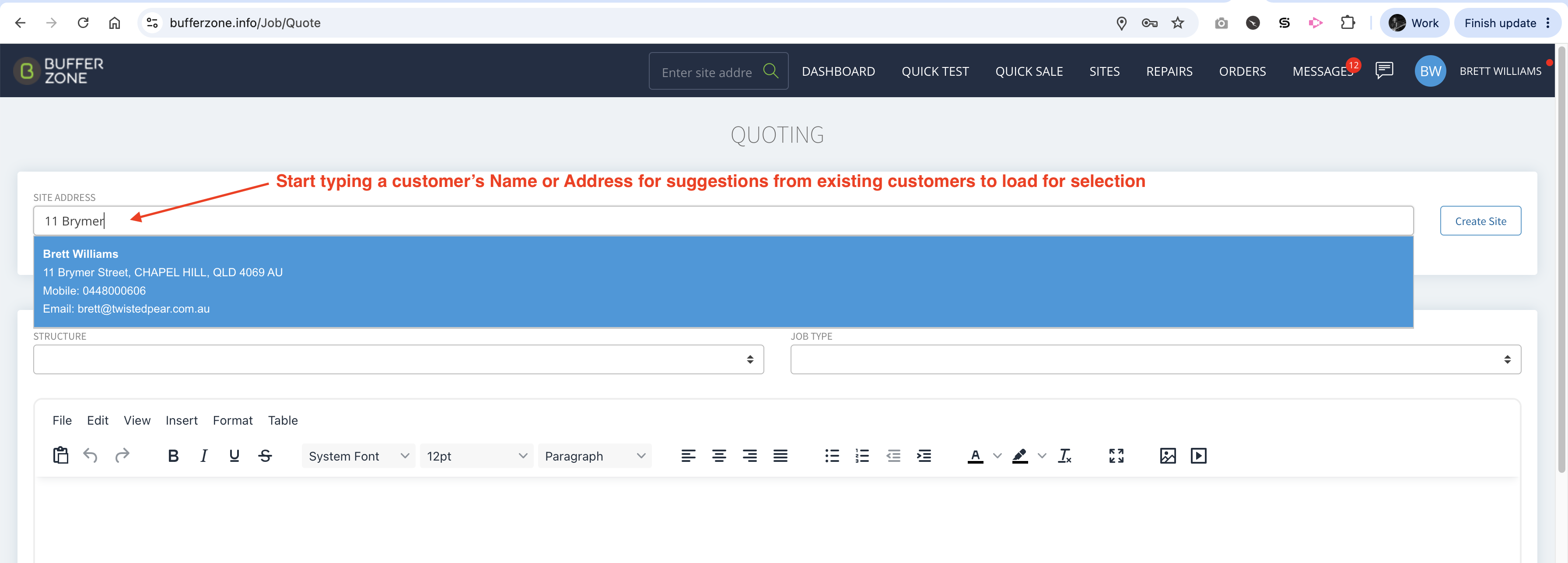
Start typing the address to be prompted with existing customers to choose from.
The address and contact details will load. Then select a Job Type. Depending on how much has been entered in the Job Type Template, edit or create content for the Description.
Next you can add products to your quote by typing the in the description field. If the product exists in your product list it will be suggested in a dropdown and load when you select it. If the product doesn’t exist in your products list, you can manually type it in and add the number of units and the price. eg Labour 4 hours @ $45 per hour.
Then at the bottom you have the option to sign off and then SEND
The Quote will appear on the Dashboard as a purple tile.
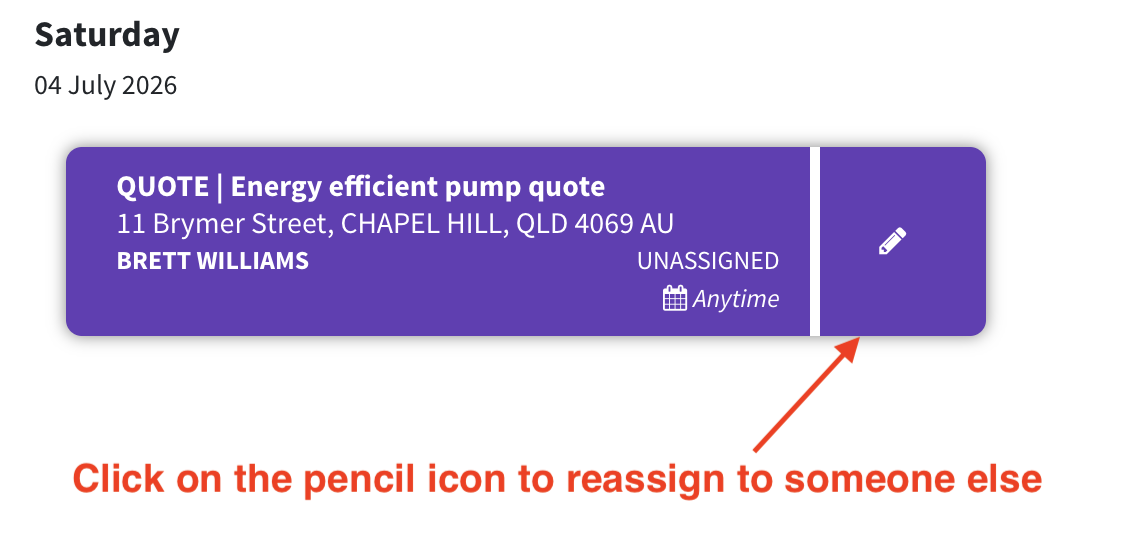
It can be reassigned to another staff member to keep an eye on it by either clicking on the pencil icon
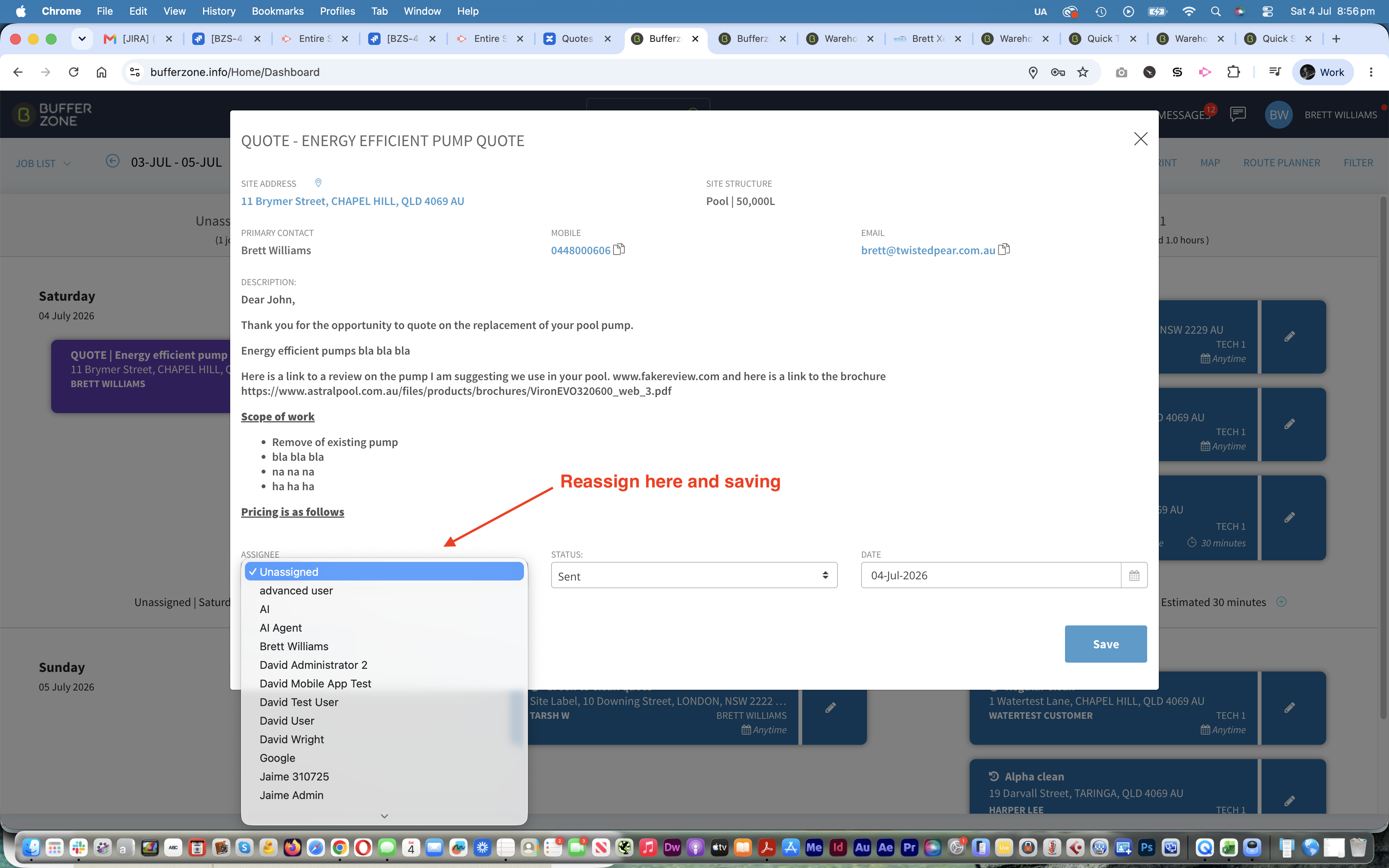
Then reassigning in the popup window and saving
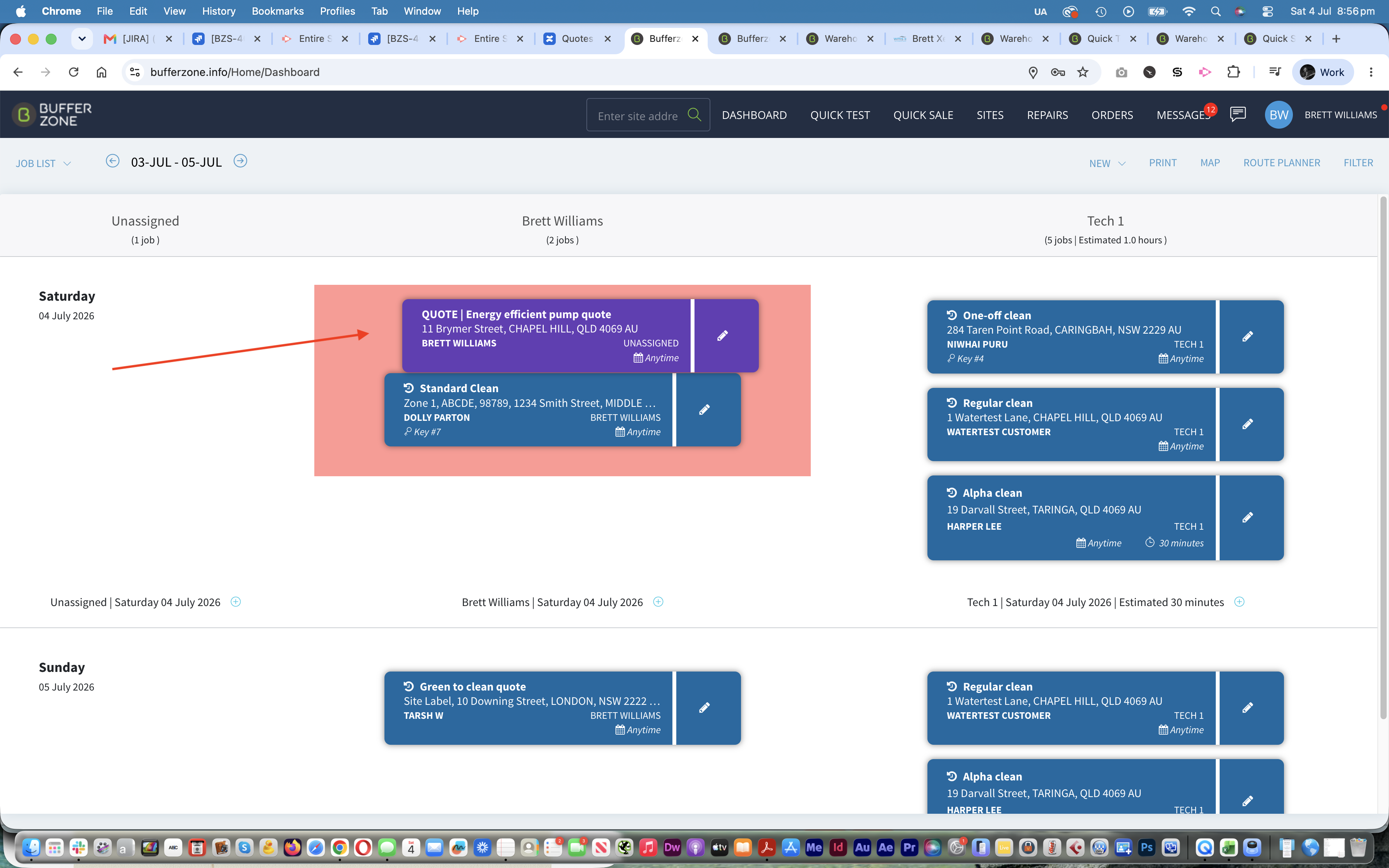
Or dragging and dropping the tile on the dashboard
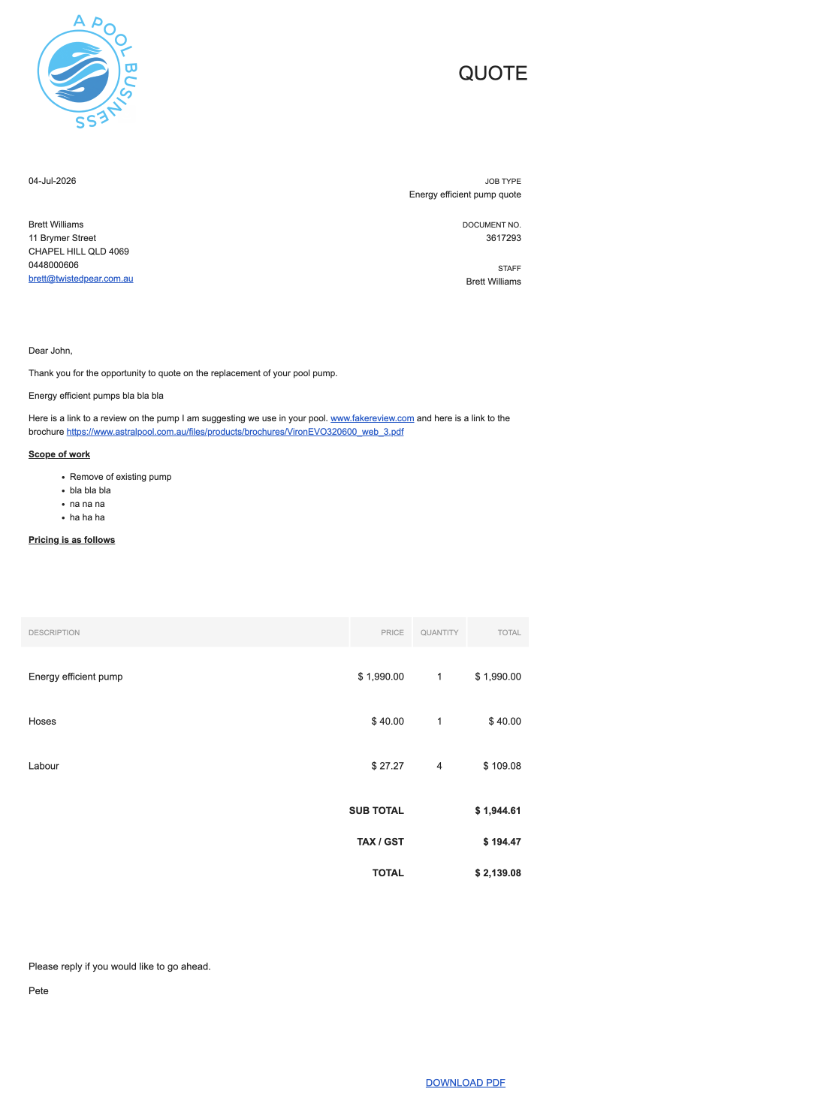
The Quote that is emailed to the customer includes your logo, the date, the customer’s name and address, the quote number etc, then the details, the products included, pricing details and the sign-off note. There is also the option for the customer to download a PDF version of the quote (at the bottom of the email)
If the customer replies it will reply to your business email address.
If they do reply and approve the quote, find the quote and open it, and hit ACCEPT QUOTE.
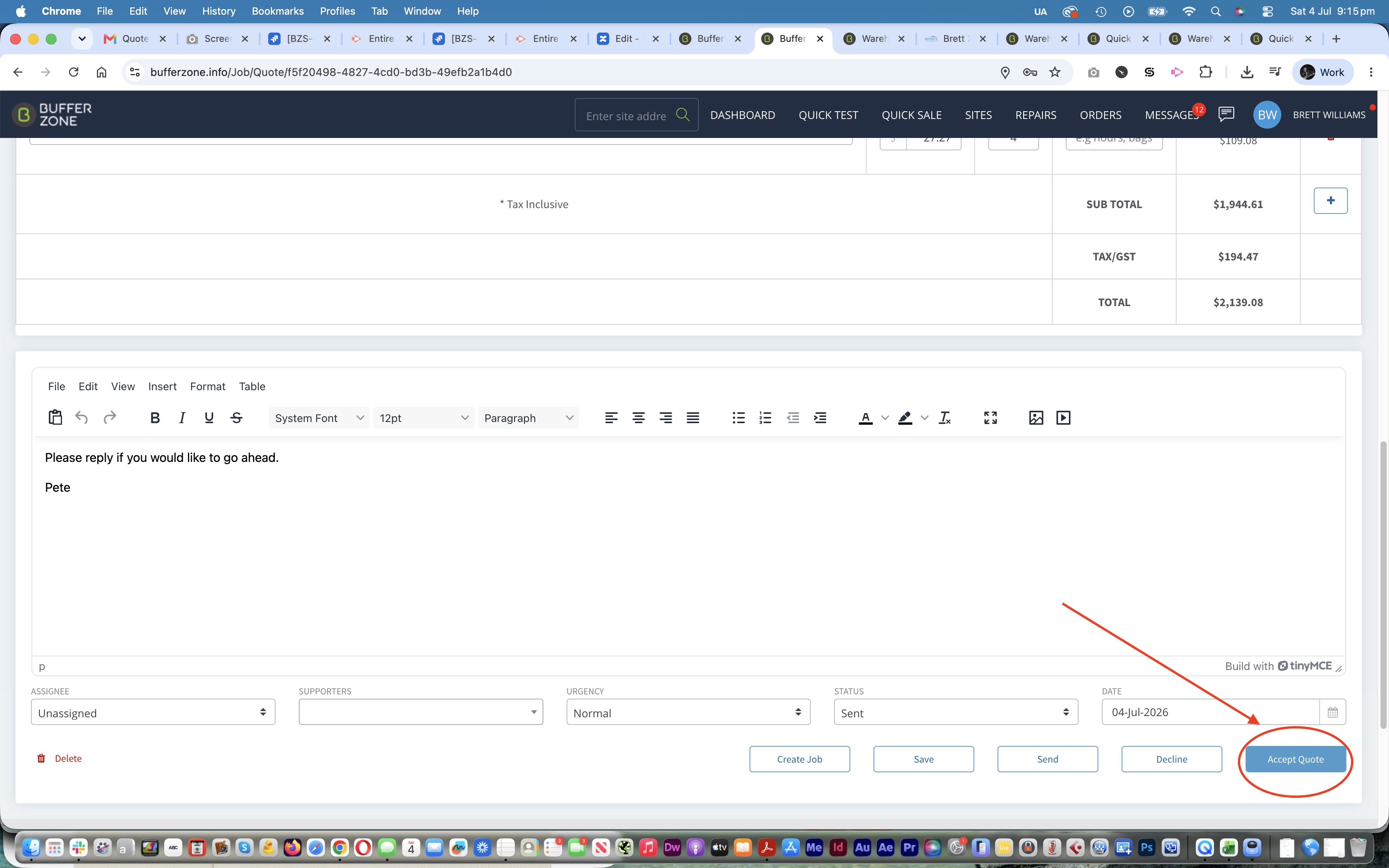
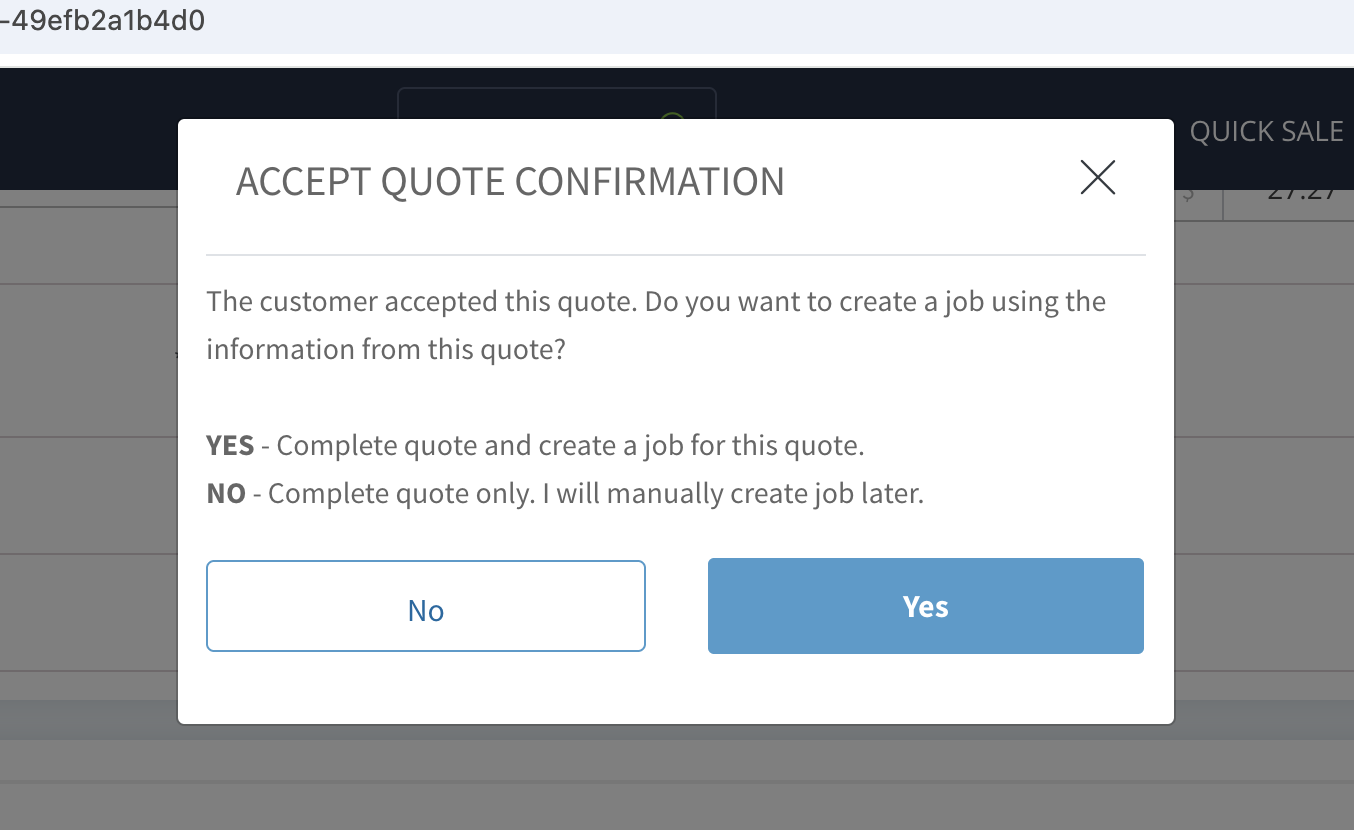
After you click on the Accept Quote button you will be presented with a popup window asking if you want to go ahead and create a job based on the quote and complete the quote. Click on Yes.
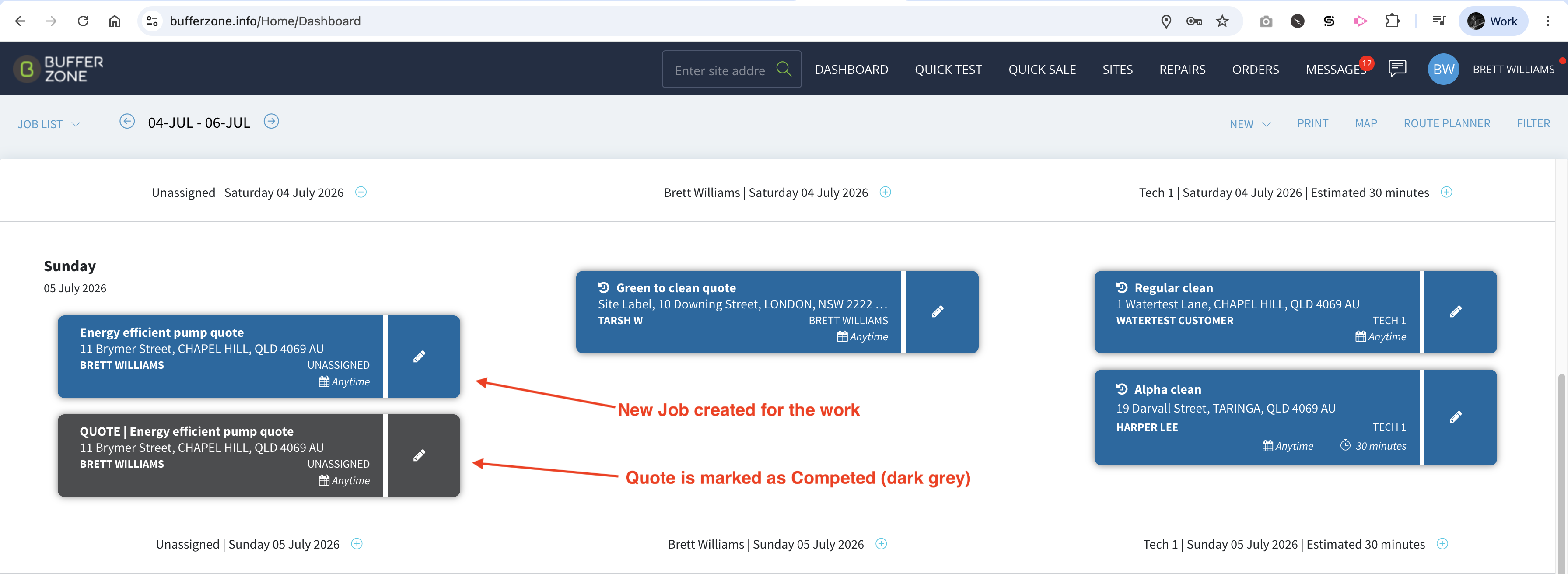
This will complete the quote and open a new job with all the quote details included in it.
The job can be edited if anything needs to be changed and it will also create a draft job card
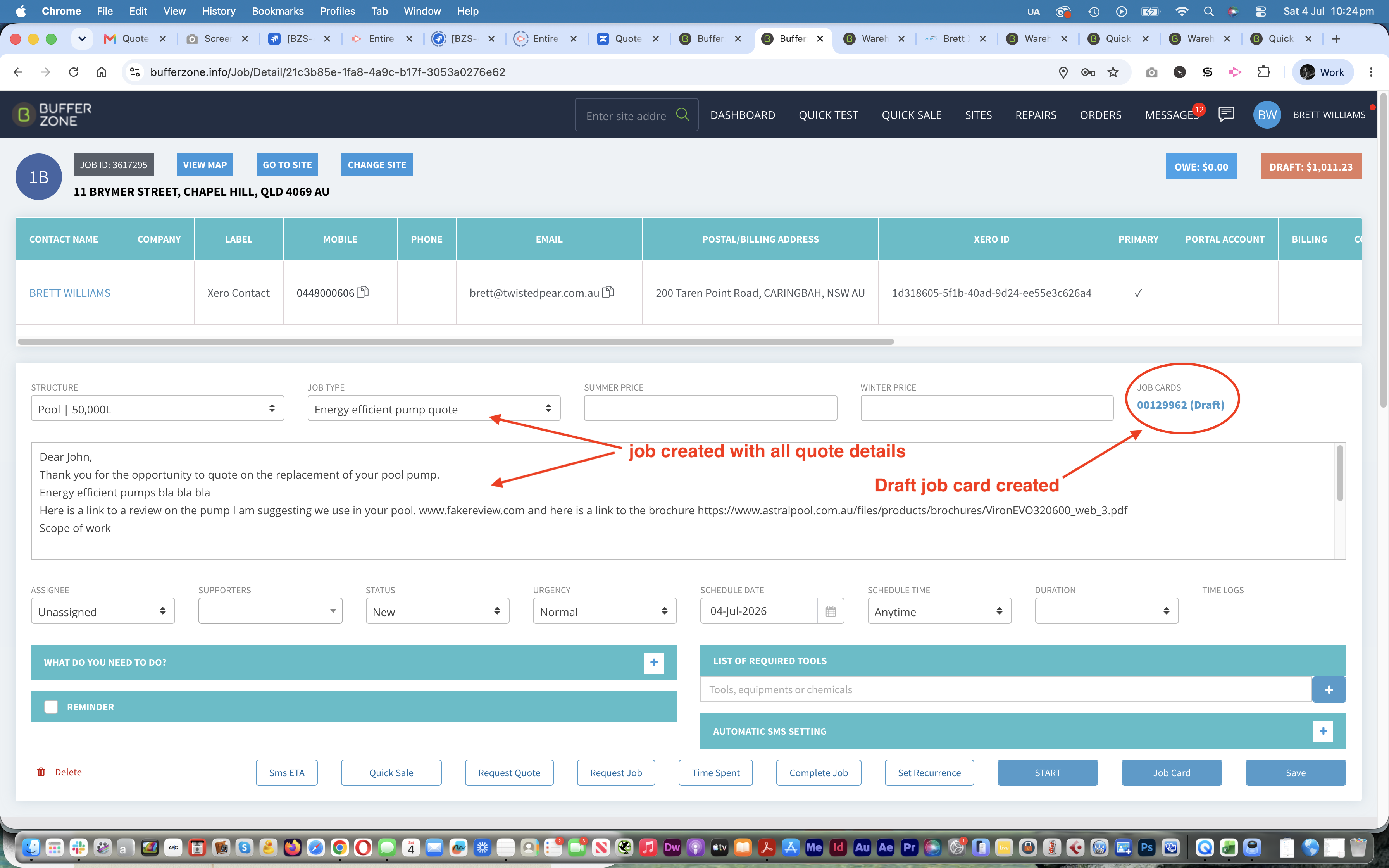
The draft job card will be pre-loaded with all the products and services that were included in the quote but because the job card is only a draft, more items can be added or existing items can be removed or edited.
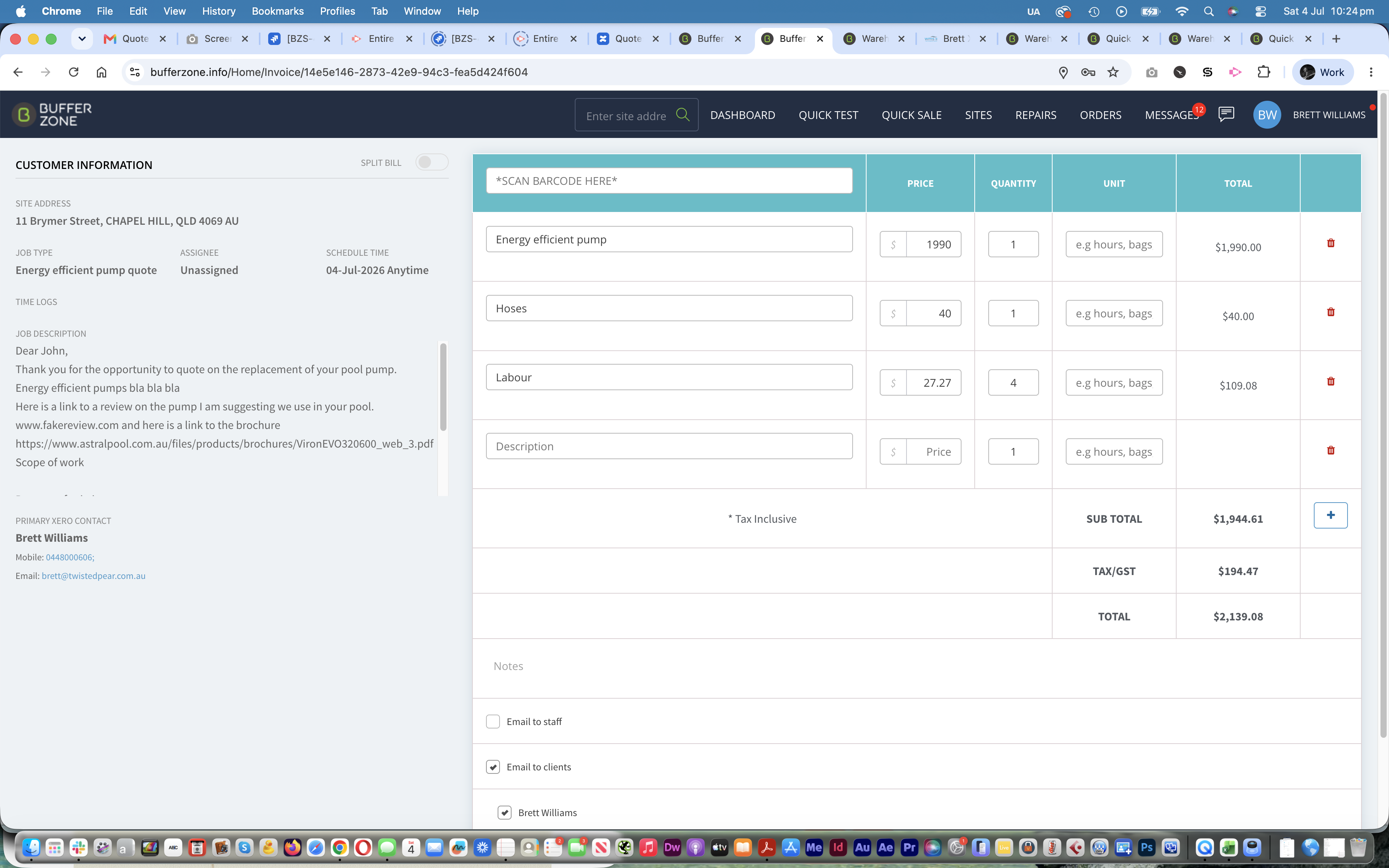
Hit Send & Complete on the job card which will send the job card to the customer and create an invoice in your accounting software (eg Xero, Quickbooks etc) if your shop is set up to integrate with them.

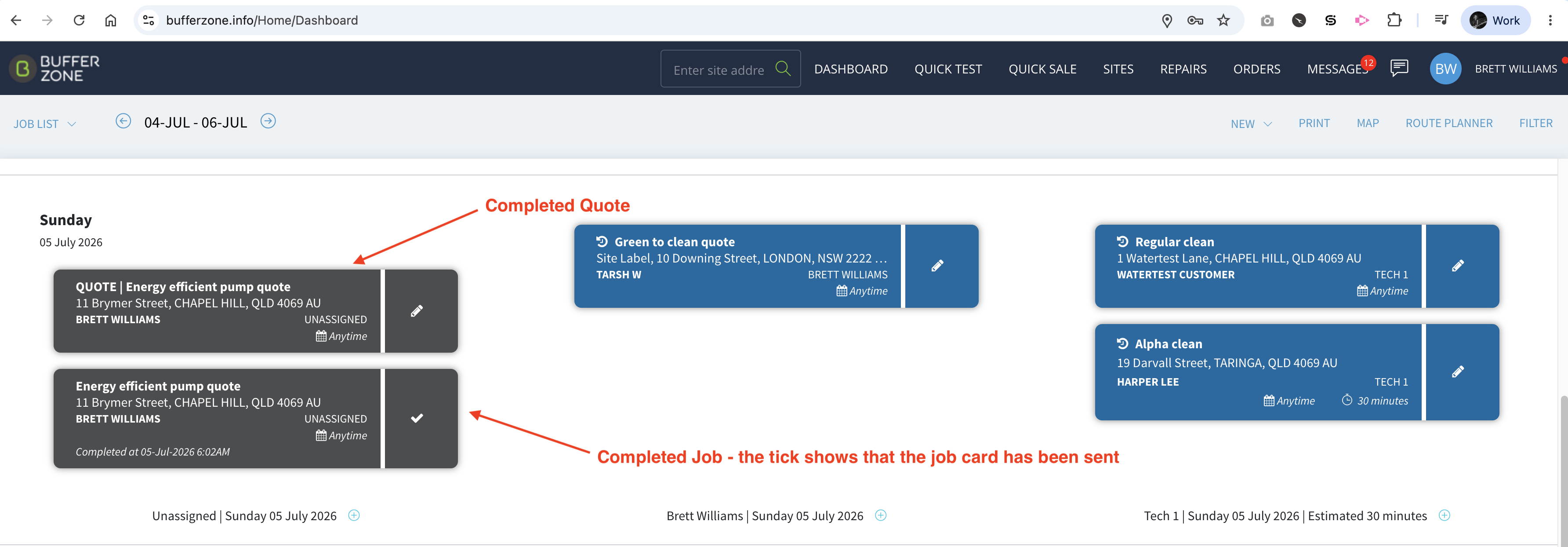
If you go back to the Dashboard you will see the Completed Quote and the Completed Job Card. The tick on the job card indicates that it has been sent to the customer if you shop is set up to do that.